Assigning Specific Contacts to Receive Acknowledgement Letters
In some cases you’ll want to send a thank you or acknowledgement letter to a specific contact linked to the constituent who made the donation.
For example, let’s say a foundation made a donation – lets call it the Anonymously Yours Foundation. We want to send the thank you letter to a specific contact or role at that foundation – Director of Development.
Now when we use the Advanced Letter Processor, we’ll want to make sure the the letter gets addressed and sent to the Director of Development for The Anonymously Yours Foundation.
So how can we do that?
Letter Contact Types
When creating a letter we can optionally set a Contact Type that should receive the letter – if one is assigned to the constituent who donated.
These Contact Types are relationships. In our example above, we’ll want to assign a relationship on The Anonymously Yours Foundation’s constituent record that connects the Director of Development as a contact type.
Defining Contact Types
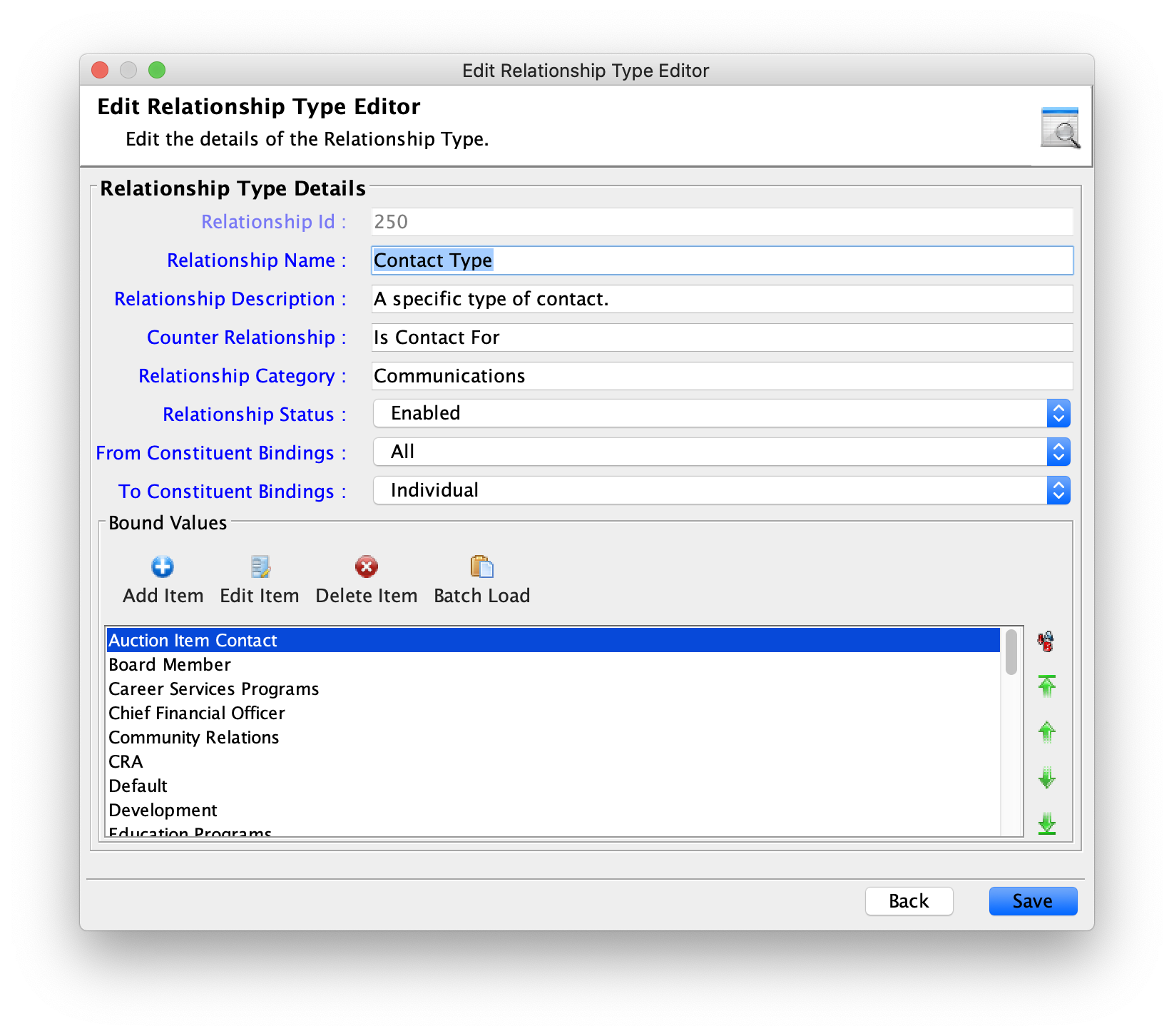
In Site Setup, locate the Contact Type relationship. It should be relationship ID 250. Here you’ll want to define the Contact Types for your organization. In the Bound Values section, click Add Item. Add as many values as you see fit. Here are some examples.
Creating the Relationship
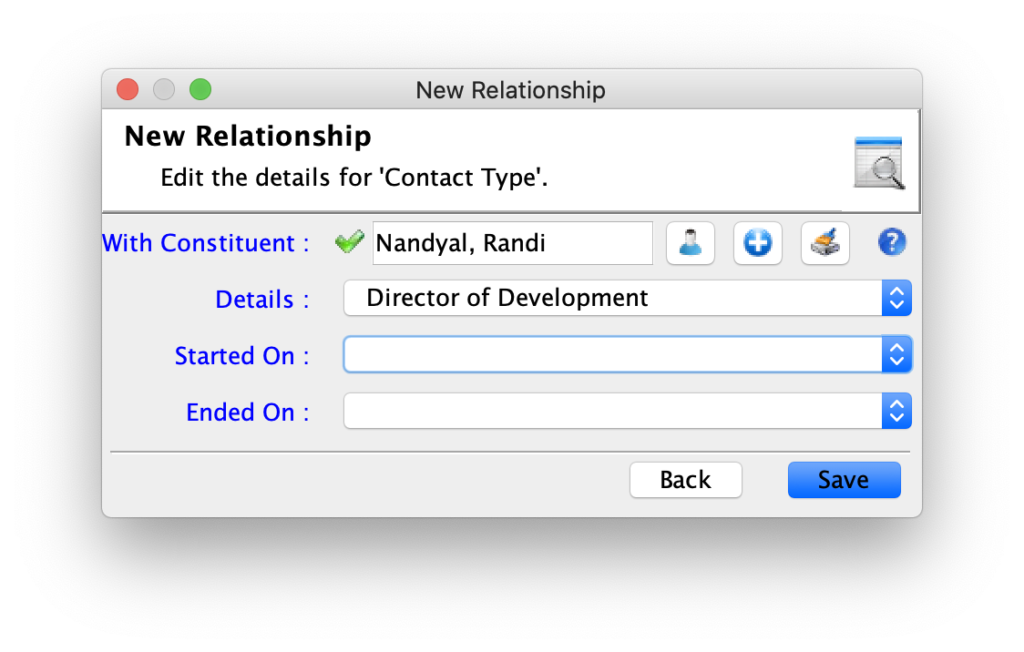
In our constituent record we want to assign a Contact Type. Open up the relationships tab. Find the Contact Type relationship from the left hand menu and click Add in the current relationships section.
Select the details of the relationship and click Save.
Now click Save on the constituent record.
Assigning a Contact Type to a Letter
As we craft letters, we’ll want to assign the Contact Type of who should receive this letter.
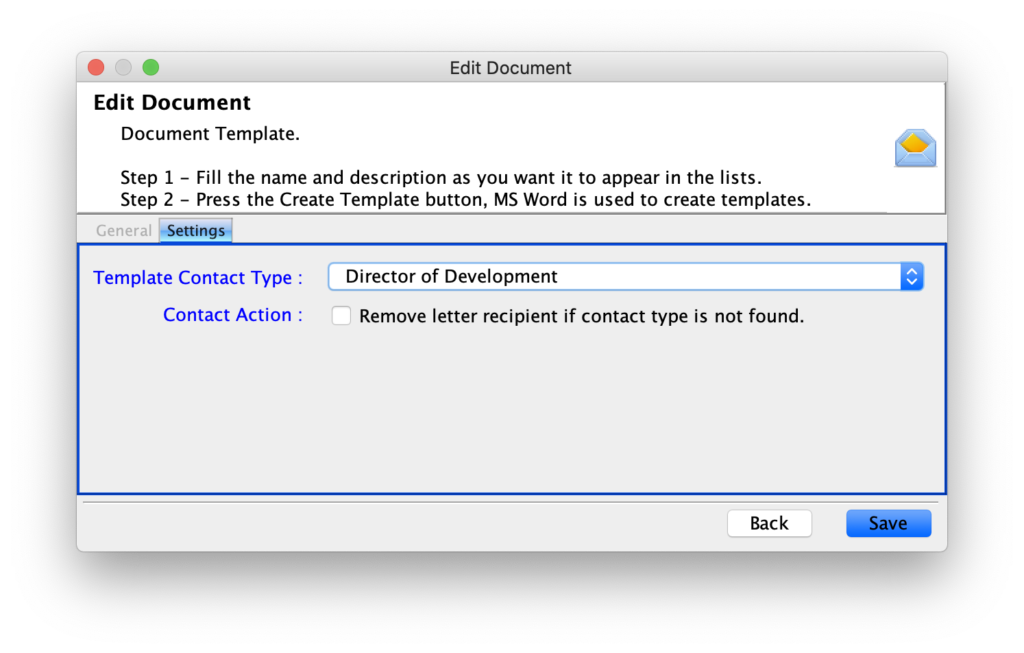
Open or Create a new letter template. In the settings tab, select the Contact Type that should receive this letter. Optionally you can remove the letter recipient in the letter processor tool if a contact is not found for the given constituent.
Generating Letters
Now let’s add a donation via the Income Recorder. Be sure to set the letter template to the template we just created.
We could have also assigned a current donation’s letter template, for example an online donation.
In the Advanced Letter Processor, we can load the donations awaiting to be acknowledged. Select the letter template we’ve been working with. On the right will be our donation. Click merge letters.
You will see that the Contact Type is set by the letter template we’ve been working with.
Tip: We could also attach an appeal code to this letter if there was an ask associated with it.
You’ll also see that the constituent is set to The Anonymously Yours Foundation.
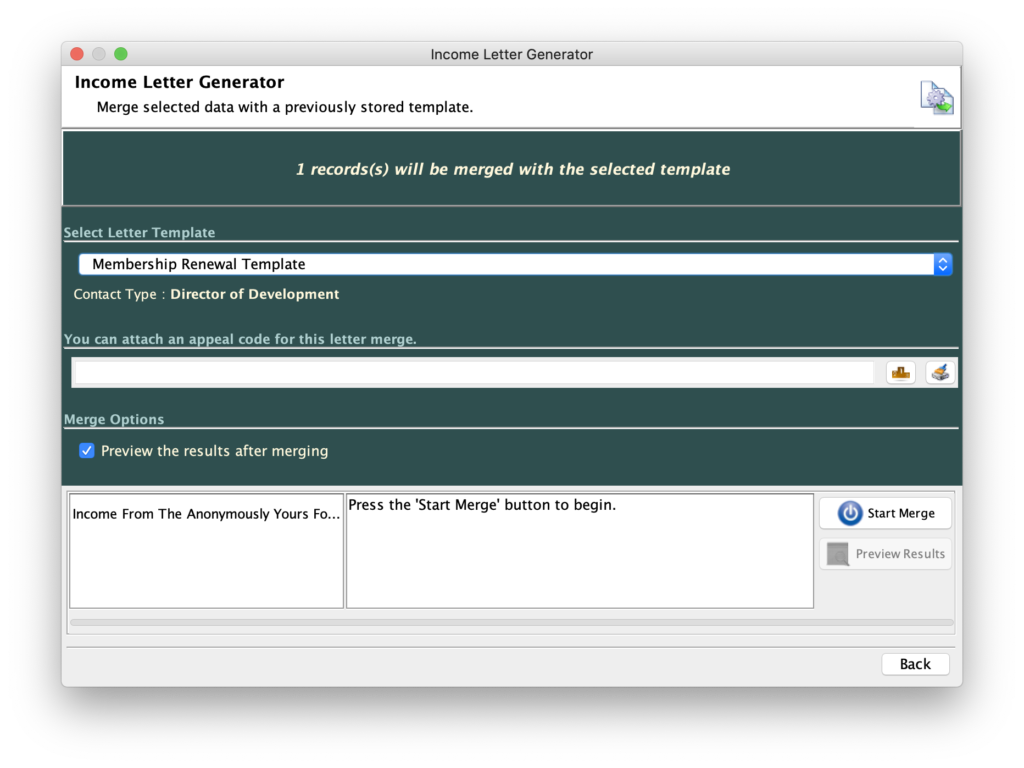
However the merged document will be addressed to the Contact Type defined by the relationship we established earlier.